Showing posts with label SDMA. Show all posts

Tuesday, September 18, 2018

Approve YouTube Videos for Students

Videos can be great instructional resources and YouTube hosts one of the most extensive video libraries. As a Google Suite for Education district, we place account restrictions on our end users for safety. As staff members, you have "unrestricted" access to YouTube with the exception of what our Securly filter blocks for content. Our elementary students have "strict" access to YouTube and middle school and high school students receive "moderate" access to YouTube content.

These restrictions sometimes block videos that are educationally appropriate. To have videos unblocked in the past, teachers would have to contact our technology department to approve the videos. This year, we have made a change in our management console to allow verified Google Classroom teachers to approve videos for student access to minimize any delays in access to resources.

To approve videos, follow the steps below. If you already use Google Classroom, you may skip the first step.

  1. Join Google Classroom by following the prompts here. The technology department will have to verify you as a teacher, so they may be a short delay after this step.
  2. Open YouTube signed into your district account.
  3. Under the video there will be a blue bar that either says the video is "approved" or "not approved" for msd.k12.wi.us. There is also a button that allows you to "Approve" or "Remove" the video for students. Once a video is approved, it is viewable by ALL students. 


If you've started your own YouTube Channel to share instructional resources or have an educational channel that your trust and use as a common resource, you may want to approve an entire channel for students.

To approve an entire channel follow these steps.
  1. Click on the channel's icon below the video. This will take you to the channel's homepage.
  2. A blue bar will appear on the channel's page, click "Approve" to grant access to ALL videos on this channel.
If a video is still blocked for students after you approve it, it is most likely being overridden by our Securly web filter. In these rare cases, you will need to reach out to the tech department by submitting a tech ticket with a direct link to the video.

Tuesday, September 4, 2018

Adobe Flash Player Update Scam

There is a deceptive "Adobe Flash Player Update" pop-up designed to install adware on your computer without your permission. The download allows nuisance online advertisements to appear and collect information.

If you use Google Chrome, the Adobe Flash Player automatically updates and you will never need to do an install. When in doubt about a pop-up requesting to install an update on any website, close the window and navigate directly to the official company website to complete the task or call our help desk for assistance.


Tuesday, August 21, 2018

Clevertouch Resources

We are excited to be piloting Clevertouch interactive panels this school year. We have at least one board at each building to be used in classrooms throughout the school district. They operate without needing a projector which means no shadows or bulb replacement. The boards also have an easy to use menu that functions like tablet devices and phones you use. You don't even have to hook up a computer to use it, though you can. Here are some written resources from Clevertouch to get you started with the board for the start of the school year:
If you prefer to see the board in action, Birmingham Public Schools created a video tutorial series on using the Clevertouch boards. Check out their list of video tutorials:
Most of the Clevertouch boards are mounted on Copernicus iRover2 carts that are adjustable for younger students or for accessibility by using the remote stored on the back of the cart. The carts also have a laptop tray that can be setup in a few different locations on the cart. The cart also has protective arms that help protect the screen and make transporting the cart safer and easier, a built in power strip to keep cords organized, and brakes to ensure the cart stays in place. The storage tubs at the bottom of the cart help keep track of the flat panel remote, cleaning cloth, cords, and adapters that should remain with the device. 
               
I would be happy to come out to buildings to do a demo/training upon request. To setup a building demonstration, please email or call me with a day of the week and times that work well for you.

Tuesday, August 14, 2018

Mobility Print

Google’s cloud print can be slow and unreliable, so we are moving to Mobility Printing on our Chromebooks. See the directions below for using Mobility Print.

Click print on your document and the following print dialogue box will open.


Select the desired printer from the list and sign in to print. Staff usernames are first initial and last name (ex. kkrueger), student usernames are their login numbers (ex. 19000) and passwords are synced from computer/email credentials. You will have to sign into each printer you use every 60 days.


Tuesday, July 17, 2018

Sun, Sand, and Cybersecurity


From the desk of Thomas F. Duffy, MS-ISAC Chair
This month, in partnership with the National Cyber Security Alliance, we aim to provide some valuable tips on staying cyber safe while heading on a summer vacation. Whether you are out exploring or relaxing, it is important to strive to be as secure as possible with your digital devices and information. Unfortunately, travel can open you up to different points of vulnerability compared to normal everyday use at home, and we don’t just mean accidentally going swimming with your cell phone. You see, while traveling you are operating outside of your normal, safe routines. This means using your devices on different networks and putting them down in different locations, including under your beach towel while swimming. By following some smart practices, you can connect with greater confidence during a summer escape.

Getting Ready to Go:

Avoid mayhem and make magical family memories by taking a few simple cyber safety steps before you head out of town. The goal here is to prepare your devices for travel and to keep them from being used against you.
  • Keep a clean machine: Before you hit the road, make sure all security and critical software is up-to-date on your mobile devices and keep them updated during travel. These protections are your best line of defense against viruses and malware.
  • Lock down your login: Your usernames and passwords are not enough to protect key accounts like those you use for email, banking, and social media. Fortify your online security by turning on multi-factor authentication, commonly referred to as two-factor authentication, when available. This typically pairs your username and password (i.e. something you know) with a message sent to your phone (i.e. something you have) or your fingerprint (i.e. something you are).
  • Password protect: Use a passcode or security feature like a finger swipe pattern or fingerprint to lock your mobile device. Also set your screen to lock after a short period of time by default. If you do choose to use a finger swipe, make sure it has at least one turn (preferably two) and that a pin code has at least 6 numbers!
  • Think before you use that app: New apps are tempting! It is important to always download new apps from only trusted sources like the Apple App Store or the Google Play Store. Additionally, consider limiting your apps access to services on your device, like location services.
  • Own your online presence: Set the privacy and security settings on social media accounts, web services, and devices. It is okay to limit how and with whom you share information – especially when you are away.

While on the Go:

Once you and your gang are at your destination, you are in new territory and are facing new potential cyber threats. Here are some ways you can keep up secure practices while out and about.
  • Get savvy about what you do on other peoples’ Wi-Fi and systems: Do not transmit personal info or make purchases on unsecure or public networks. Instead, use your phone carrier internet service for these needs. For laptops/tablets, it is easy to use your phone as a personal hotspot to surf more securely using carrier data. Also, never use a public computer or device to shop, log in to accounts, or do anything personal.
  • Turn off Wi-Fi and Bluetooth when idle: When Wi-Fi and Bluetooth are on, they may connect and track your whereabouts. Only enable Wi-Fi and Bluetooth when required, and disable your Wi-Fi auto-connect features.
  • Protect your $$$: Be sure to shop or bank only on secure sites. Web addresses with ‘https://’ and a lock icon indicate that the website takes extra security measures. However, an “http://” address indicates your connection is not secure (not encrypted) and you should not transmit payment or sensitive information over to such a site.
  • Share with care: Think twice before posting pictures that signal you are out of town. Knowing you are away from home is a great piece of information for a criminal to have and they may target your home for physical crime. Also consider limiting your social media apps’ access to location services on your device, and omit location information while making your posts and sharing your pictures.
  • Keep an eye on your devices: Laptops, smartphones, and tablets are all portable and convenient, making them perfect for a thief to carry away! Keep your devices close to you and hold onto them if strangers approach you to talk, as a common scam consists of a stranger distracting you and placing a map or newspaper over your device and walking away with it when finished talking.
  • Know your destination’s laws: If you are heading out of the country, check up on any specific laws on internet and device usage. Additionally, bring as few devices as possible and consider using a device specifically purchased for international travel.
Armed with these tips and practices, you should have a happy and cyber safe vacation ahead of you. To learn more about staying cyber safe and secure while travelling, head to the MS-ISAC’s Security Primer covering this topic. For more information on NCSA, including countless resources on staying cyber secure, please visit staysafeonline.org.

Tuesday, May 29, 2018

2018 Summer Projects

The technology department has the following planned projects this summer:

  • Clerical Computer Refresh: Clerical staff will be receiving new computers over the summer with a Windows update. Staff who do not work summer hours will need to backup before the end of the school year.
  • Desktop Reimaging: All district desktops will be reimaged over the summer. Please make sure that you backup computers before leaving for the summer.
  • Student Chromebooks: We will be going through all elementary chromebook carts over the summer to check for damage, update chrome, and wipe user profiles to start off the new school year. We will also be reviewing all MS/HS chromebooks to assess damage and make sure they are ready to go back to students in the fall.
  • Fiber Construction: We will be finishing up our CINC fiber construction project and switching over to their network this summer. The majority of the construction has already been completed. Our construction crew will terminate the fiber at each site in the next few weeks and then we'll be able to setup the new lines.

Tuesday, March 27, 2018

New Google Releases Make Collaboration Easier

Google has two updates that are being rolled out this month to help improve collaboration. First, the "Shared with Me" tab in Google Drive is becoming more predictive and will feature documents shared by your most frequent collaborators. Learn more about this feature from Google.


Second, Google Docs, Sheets, and Slides will now feature an activity dashboard for more transparency into who has viewed files and when. This will help editors know when to alert collaborators when changes have been made. To learn more about this feature check out Google's post.


Both of these features will become available in the coming weeks.

Tuesday, March 20, 2018

Voice Comments in Google Drive

Kaizena is a Google Docs add-on that allows teachers to create text comments, voice comments, link to resources and lessons, and provide rubric style feedback on skills. Simply highlight a portion of the document and select how you'd like to give feedback.


Here is a video that outlines everything you need to know to get started including how teachers and students enable the add-on in Google Docs.


Tuesday, March 6, 2018

Introduction to Team Drive

Team Drives are shared folders where team members can store their files and guarantee that every member has the most up-to-date information, no matter the time or place. Team members may be added individually or by district Google Groups. 

 What's the difference between a standard shared folder and a team drive?
Team Drives retain all files added to the collection even if members leave the team or organization. 


To get started with Team Drives:
  1. Go to drive.google.com.
  2. On the left, click Team Drives.
  3. At the top left, click New.
  4. Enter a name for the Team Drive.
  5. Click Create.
  6. At the top, click Add members Group contacts.
  7. Add names, email addresses, or a Google Group.
  8. Click Send.
A few notes about adding members:

  1. By default, members can upload, edit, and delete files, and invite other members.
  2. It is recommended that one member retain full rights and other members are given Edit Access to avoid any accidental deletion of files.
  3. If the team member with Full Access leaves the team or organization the technology department can assign Full Access rights to a new team member.

There are 4 tiers of access for members:
Full Access – upload/delete/edit files
Edit Access - edit/upload files
Comment Access - view/comment on files
View Access - View files

Tuesday, February 27, 2018

Google Calendar & Sites Updates

Google Calendar Refresh:
Google has phased in a new version of calendar over the last few months. The classic view will be fully phased out this week and any one who has delayed switching will automatically be transitioned to the new version. The updated calendar is bolder, crisper, and streamlines tasks like browsing for calendars, reserving rooms and resources, and viewing multiple calendars side by side. See Google's Updates blog for a full list of updates included in this refresh and check out the video from Richard Byrne below for a quick comparison of the classic view and the new version.


Google Sites Update:
Google now allows users to publish sites to a specific audience in the new Google Sites. See the G Suite updates blog for more details.


Tuesday, February 20, 2018

New Commenting Capabilities in Google Drive

Google is in the process of rolling out the option to comment on the preview page for Microsoft Office files, images, and PDFs. This allows collaboration through comments without having to convert all files to Google Documents. This functionality will be available to all users by the end of February. For more information, take a look at the G-Suite Updates blog post.

Photo from G-Suite Update Blog

Tuesday, February 13, 2018

Search for Files in Google Drive


As much as I like to be organized, sometimes it's hard to keep up with separating my piles of digital documents. I also know that not everyone loves organizing with folders. Google Drive's search feature makes it easy find your files and folders any time.

By clicking the drop-down arrow in the Drive search box, you have access to advanced search features. Search by keywords, file types, date modified, owner, shared with, and/or file location.

With the ability to search for files so efficiently, it is not necessary to use folders to organize all your files.


About a month ago, Google also added the option to search within a folder. To access this feature, highlight the folder you want to search. Right click to see folder options and select "Search with [Folder Name]."

To read more about searching within a folder, check out the G-Suite Update blog post:  https://gsuiteupdates.googleblog.com/2018/01/search-within-folder-in-google-drive.html

Tuesday, February 6, 2018

Customize Folders with Icons


Custom icons aren't just for show--they can help you quickly identify frequently accessed folders and applications. This customization is available across platforms though the process varies. Check out directions below.


Custom Google Drive Folder Icons
In addition to changing the color of your folders you are able to add an icon or emoji to the folder's title field.
  1. Open Google Drive and select the folder you would like to modify.
  2. Select the option to rename the folder.
  3. Copy a symbol or emoji from one of the sites listed below and paste into the text box with the folder's name.
Sites to find icons:


Custom Mac Icons
You can create a custom icon for any file or folder with pictures or icons.

  1. Copy the picture you want to use to the Clipboard. 
  2. Select the file or folder whose icon you want to replace, then choose File > Get Info.
  3. At the top of the Info window, click the picture of the icon, then choose Edit > Paste.
Apple Support Resource:
https://support.apple.com/kb/PH25383?locale=en_US


Custom Windows Icons
Windows offers an icon library for customization or you can select a photo of your own.

  1. Right-click the folder you want to customize and select "Properties."
  2. In the "Customize" tab, select either a folder picture or folder icon.
  3. Follow the prompts and select ok to save.


Tuesday, January 16, 2018

Google Classroom Training Center

Google has created a great toolkit with videos, tip sheets, and professional development resources for getting started with Classroom. Start with "the basics" by checking out a set of videos on setting up your Classroom and inviting students then learn to create assignments, add materials, and provide grades and feedback. Visit the "Teacher's Lounge" to get video tips from teachers. Google also provides some "Handy Guides" with step-by-step Classroom directions and quick tips.


Get started on your #FirstDayofClassroom today by visiting the Classroom Training Center.

Tuesday, January 9, 2018

January 1 - April 15 is Phishing Season

While phishing attacks can occur at any time, there is an increase in attacks between January 1 and April 15. As a reminder, phishing is a tactic designed to steal personal data (think passwords, credit card numbers, banking information, etc) and/or install malware on your computer. Phishing attacks come in many forms. Emails that impersonate popular companies and services (banks, dropbox, Google, etc) are most common. Spear-phishing occurs when attackers send emails that appear to come from your trusted contacts, such as, coworkers, friends, etc. Attacks may also make phone calls impersonating others and use other methods to obtain your personal information.

Check out the following tips to avoid falling victim to phishing scams:

Be Skeptical
If something seems suspicious, use caution. Typos, too many exclamation points, and other grammatical flags can be used to question the legitimacy of emails. 

Check the sender's address. Don't trust the display name alone: hover over the display to see the full email address. Does it match other communications from the organization?

You can also hover your mouse over any links embedded in the body of the email. If the link address looks weird, don’t click on it. If you want to test the link, open a new window and type in website address directly rather than clicking on the link from unsolicited emails. 

Is the email addressed "Dear Customer" or with another generic salutation? If so, be cautious —legitimate business emails will often personalize their greetings with your name.

Legitimate banks and companies will never ask for personal credentials via email or phone. Don’t give them up.

Invoking a sense of urgency or fear is a common phishing tactic. Beware of subject lines that claim your “account has been suspended” or your account had an “unauthorized login attempt.” Urgent language is designed to make you act before thinking.

Lack of details about the signer or how you can contact a company strongly suggests a phish. Most companies have an official signature.

Including malicious attachments that contain viruses and malware is a common phishing tactic. Malware can damage files on your computer, steal your passwords or spy on you without your knowledge. Don’t open any email attachments you weren’t expecting.

Phishers are extremely good at what they do. Just because an email has convincing brand logos, language, and a seemingly valid email address, does not mean that it’s legitimate. Be skeptical when it comes to your email messages—if it looks even remotely suspicious, don’t open it.


Choose Strong Passwords and Keep them Secure
One of the best ways to protect against phishing attacks is to use secure password management strategies. Passwords should be unique for each of your logins, with master passwords like your district synced credentials, being the strongest and most secure. While tempting to select passwords based on personal information is tempting, these passwords are often also the least secure and easy for others to guess. Examples: favorite sports team, family names, pet names, etc. The most secure passwords contain a random string of words. Passwords are also only as secure as how you store them. If you must write them down to remember them, make sure they are stored in a secure location--not on your monitor, under keyboard, etc. 

Password Resources:
  • Take the password quiz Carnegie Mellon University designed to assess your perceptions of secure passwords. 
  • Last Pass is a password manager that allows you to set one secure password to manage randomly generated passwords for the websites you visit.
  • Password Alert gives you a warning when it detects you reusing passwords across sites.
  • How Secure is My Password estimates how long it would take for someone to hack your password.
Use 2-Factor Authentication
To keep your district accounts secure, I highly recommend enabling 2-Step Verification to protect your account credentials. Since we sync your passwords across multiple websites and applications, it is critical that we all do our part to protect our accounts. This extra step does not take much additional time and keeps bad guys out even if they are able to obtain your password. Information about how it works and a link to step by step directions follow. 


Tuesday, January 2, 2018

Technology Coaching Menu

As technology coaches, our goal is to support educators in creating an effective digital learning environment for students. We are available to work with you on anything involving instructional technology and learning, including, but not limited to:

  • Researching and identifying the best technology tools and resources for meeting your instructional and learning goals
  • Co-planning differentiated activities with choice assignments, projects, and activities 
  • Co-designing lessons with effective technology integration
  • Co-creating digital assessments and feedback loops
  • Co-teaching lessons (While building coach schedules are limited, Katie would be happy to co-teach with you)
Thanks,
SDMA Technology Coaching Team

Jaclyn Arnold, Downsville
Laura Garfield, Knapp
Matt Wigdahl, Oaklawn
Zac Rubenzer, Oaklawn
Kyle Gregerson, River Heights
Hannah Klingfus, Wakanda
Heidi Anderson, Wakanda
Amanda Harrison, MS
Holly Gallbreath, MS
Jennie Cimino, MS
Becca Workman, MS & SPED
Andra Smith, HS
Kayla Oliver, HS
Michele Huppert, HS
Katie Krueger, ASC

Tuesday, November 28, 2017

Best Practices for Sharing Google Docs

Link-Based Sharing vs. Invite-Based Sharing


Link-Based Sharing
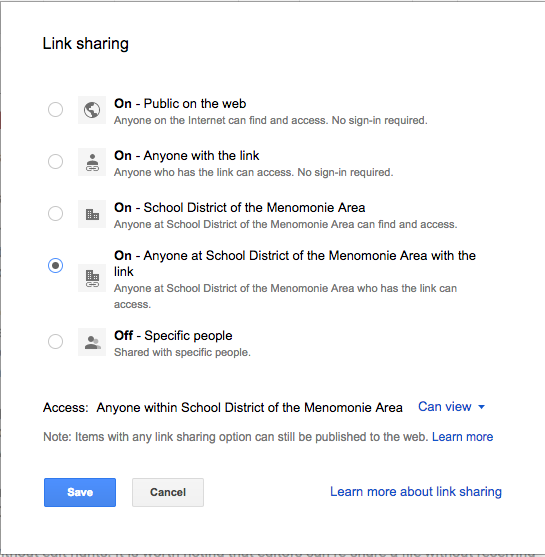
Selecting the default “get shareable link” option gives access to  the file with everyone in our SDMA domain including students. You can also share files outside our domain by choosing “anyone with the link” or “public on the web.”  While you may only publicize the link with your intended audience, your file is still searchable.

Link-based sharing is a quick and easy way to circulate documents in your Drive. Consequently, it also poses the greatest security risk to our data if misused or misunderstood because it often results in unintentional sharing of confidential or sensitive information internally.

Invite-Based Sharing
Alternatively, the most secure way to disseminate file access is by invite. This selection requires you to type in the name or email address of those with whom you wish to share the file. This requires the recipients to be signed-in to their appropriate Google account to view or edit the shared document. To make this process more convenient, you may type in existing Google Groups. Typing in “High School Staff,” for example, will quickly share your document with everyone in that email group. For sensitive data, invite-based sharing either individually or by Group is highly encouraged in lieu of link-based sharing options. Additionally, by clicking “Advanced,” you receive the options to “Prevent editors from changing access and adding new people” and “Disable options to download, print, and copy for commenters and viewers.” These features further ensure that you retain control of your most sensitive data.


Tuesday, November 21, 2017

Staff Cases

We ordered some new 14" Device Sleeves/Cases this fall. If you would like a new case for your district device, please fill out the following form and we will deliver one to your building.

Happy Thanksgiving!
The Technology Department

Tuesday, November 7, 2017

Google Cast for Education

Looking for a way for students to share their screens with the class? Check out the Google Cast for Education extension. You can allow students to cast to your teacher device connected to the projector. If you use Google Classroom, giving students permission to cast to your device is quick and easy. Not currently a Classroom user, add student permissions as you need them to present.

Here's how to set it up:
  1. Install the Google Cast for Education extension in the Chrome web store.
  2. To open the extension, click on the Google Cast for Education Icon. 
  3. For Receiver name, enter a name such as Room 301 or Ms. Krueger. Click Save. This is what students will see when they request to connect to your device when they want to cast.
  4. Click Share. To invite your students to cast, enter the name of your Google Classroom class or individual student email addresses and click Add.
  5. Choose permissions for each student or class:
    • Can present—Students can cast to your screen anytime you have the extension open.
    • Can request—Students can request to cast. You need to approve or deny each request.
    • Note: Students who aren’t on the list won't see the extension in their Chrome toolbar.
    • I recommend the request option in general; however, permissions can be adjusted as needed.
  6. For students to cast to your device, make sure the extension is open. Have students click on the Chrome menu, identify your device, and choose “cast.” They can then decide to cast their whole screen or just the active tab.
  7. If students have "can request" permissions, you’ll get a pop-up on your screen to grant access. Once you do, the student's screen will appear on your device.
Check out Google's Cast for Education Support Guide for more information and see how cast can be used for class collaboration in the video below.


Tuesday, October 31, 2017

Adding & Managing Files in Multiple Folders Using Shift + Z


Google Drive makes it easy to collaborate and share files. While I love this aspect, I don't always appreciate being at the mercy of collaborators when it comes to organizing my files. As someone who shares many files and folders with others, one of my favorite features is the ability to place the same Google file in multiple locations.


To add existing files or folders to additional folders:

  • Open your Drive and select the file(s) and folder(s) you want to add to another folder. 
  • Hold the Shift key and press and a window will pop up prompting you to select the folder you would like to store copies of your files and folders. 
  • Select an existing folder or use the folder with the + icon to create a new folder to house your files. 
  • Click the green Add here button and your files have been copied to multiple folders.
This is different from just moving the file since it will not impact your collaborators' ability to access the files; and, it is different from "making a copy" of the file because any updates made in the shared document will also be reflected in your secondary location. Using Shift + Z makes organization easier because when you edit this file inside one folder, all the other copies are updated as well. It's a win-win--collaboration on your own organizational terms!