Google has two updates that are being rolled out this month to help improve collaboration. First, the "Shared with Me" tab in Google Drive is becoming more predictive and will feature documents shared by your most frequent collaborators. Learn more about this feature from Google.
Second, Google Docs, Sheets, and Slides will now feature an activity dashboard for more transparency into who has viewed files and when. This will help editors know when to alert collaborators when changes have been made. To learn more about this feature check out Google's post.
Both of these features will become available in the coming weeks.
Showing posts with label Docs. Show all posts
Tuesday, March 27, 2018
Tuesday, March 20, 2018
Voice Comments in Google Drive
Kaizena is a Google Docs add-on that allows teachers to create text comments, voice comments, link to resources and lessons, and provide rubric style feedback on skills. Simply highlight a portion of the document and select how you'd like to give feedback.
Here is a video that outlines everything you need to know to get started including how teachers and students enable the add-on in Google Docs.
Tuesday, December 5, 2017
Checkmark Chrome Extension for Feedback in Docs
Checkmark, by EdTechTeam, is a great extension to use in Docs to provide feedback on student writing. It offers over several canned comments that can be easily selected and added to the document when you highlight text in a Google Doc. Options include several common writing errors such as: evidence needed, check punctuation/capitalization, subject-verb agreement, etc. Check out the demo image below and click here to add the extension from the Chrome Webstore.
Tuesday, November 28, 2017
Best Practices for Sharing Google Docs
Link-Based Sharing vs. Invite-Based Sharing
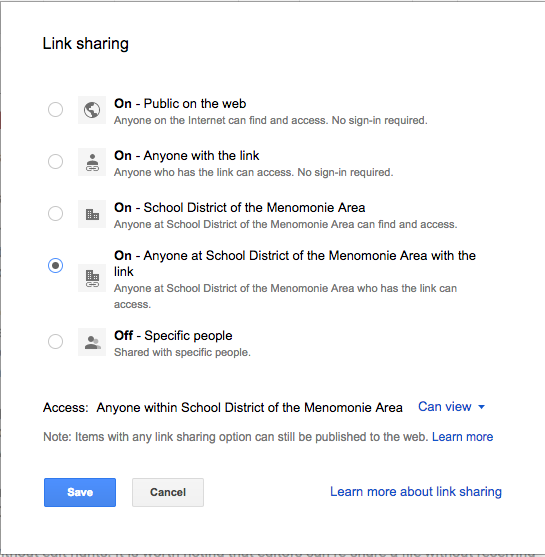
Selecting the default “get shareable link” option gives access to the file with everyone in our SDMA domain including students. You can also share files outside our domain by choosing “anyone with the link” or “public on the web.” While you may only publicize the link with your intended audience, your file is still searchable.
Link-based sharing is a quick and easy way to circulate documents in your Drive. Consequently, it also poses the greatest security risk to our data if misused or misunderstood because it often results in unintentional sharing of confidential or sensitive information internally.
Alternatively, the most secure way to disseminate file access is by invite. This selection requires you to type in the name or email address of those with whom you wish to share the file. This requires the recipients to be signed-in to their appropriate Google account to view or edit the shared document. To make this process more convenient, you may type in existing Google Groups. Typing in “High School Staff,” for example, will quickly share your document with everyone in that email group. For sensitive data, invite-based sharing either individually or by Group is highly encouraged in lieu of link-based sharing options. Additionally, by clicking “Advanced,” you receive the options to “Prevent editors from changing access and adding new people” and “Disable options to download, print, and copy for commenters and viewers.” These features further ensure that you retain control of your most sensitive data.
Tuesday, October 31, 2017
Adding & Managing Files in Multiple Folders Using Shift + Z

Google Drive makes it easy to collaborate and share files. While I love this aspect, I don't always appreciate being at the mercy of collaborators when it comes to organizing my files. As someone who shares many files and folders with others, one of my favorite features is the ability to place the same Google file in multiple locations.
To add existing files or folders to additional folders:
- Open your Drive and select the file(s) and folder(s) you want to add to another folder.
- Hold the Shift key and press Z and a window will pop up prompting you to select the folder you would like to store copies of your files and folders.
- Select an existing folder or use the folder with the + icon to create a new folder to house your files.
- Click the green Add here button and your files have been copied to multiple folders.
Thursday, July 27, 2017
Set an Expiration Date for Shared Access to Drive Files
Google allows Drive users to set an expiration date for shared access on documents. This is great for when you want to provide temporary commenting or viewing rights on documents. Expiration dates cannot be set for users with editing rights at this time.
Here's how it works:
- Go to your file's shared settings.
- Add your collaborators.
- Mouse over a collaborator whose access you'd like to expire after a set time.
- The timer icon will appear. Click it and set the expiration date for viewing or commenting rights.
- Save changes.
For more information, check out the Google Apps Updates Blog.
Subscribe to:
Posts (Atom)


