Google has two updates that are being rolled out this month to help improve collaboration. First, the "Shared with Me" tab in Google Drive is becoming more predictive and will feature documents shared by your most frequent collaborators. Learn more about this feature from Google.
Second, Google Docs, Sheets, and Slides will now feature an activity dashboard for more transparency into who has viewed files and when. This will help editors know when to alert collaborators when changes have been made. To learn more about this feature check out Google's post.
Both of these features will become available in the coming weeks.
Showing posts with label Google Drive. Show all posts
Tuesday, March 27, 2018
Tuesday, March 20, 2018
Voice Comments in Google Drive
Kaizena is a Google Docs add-on that allows teachers to create text comments, voice comments, link to resources and lessons, and provide rubric style feedback on skills. Simply highlight a portion of the document and select how you'd like to give feedback.
Here is a video that outlines everything you need to know to get started including how teachers and students enable the add-on in Google Docs.
Tuesday, March 6, 2018
Introduction to Team Drive
Team Drives are shared folders where team members can store their files and guarantee that every member has the most up-to-date information, no matter the time or place. Team members may be added individually or by district Google Groups.
What's the difference between a standard shared folder and a team drive?
Team Drives retain all files added to the collection even if members leave the team or organization.
To get started with Team Drives:
- Go to drive.google.com.
- On the left, click Team Drives.
- At the top left, click New.
- Enter a name for the Team Drive.
- Click Create.
- At the top, click Add members Group contacts.
- Add names, email addresses, or a Google Group.
- Click Send.
A few notes about adding members:
- By default, members can upload, edit, and delete files, and invite other members.
- It is recommended that one member retain full rights and other members are given Edit Access to avoid any accidental deletion of files.
- If the team member with Full Access leaves the team or organization the technology department can assign Full Access rights to a new team member.
There are 4 tiers of access for members:
Full Access – upload/delete/edit files
Edit Access - edit/upload files
Comment Access - view/comment on files
View Access - View files
Tuesday, February 20, 2018
New Commenting Capabilities in Google Drive
Google is in the process of rolling out the option to comment on the preview page for Microsoft Office files, images, and PDFs. This allows collaboration through comments without having to convert all files to Google Documents. This functionality will be available to all users by the end of February. For more information, take a look at the G-Suite Updates blog post.
![]() |
| Photo from G-Suite Update Blog |
Tuesday, February 13, 2018
Search for Files in Google Drive
As much as I like to be organized, sometimes it's hard to keep up with separating my piles of digital documents. I also know that not everyone loves organizing with folders. Google Drive's search feature makes it easy find your files and folders any time.By clicking the drop-down arrow in the Drive search box, you have access to advanced search features. Search by keywords, file types, date modified, owner, shared with, and/or file location.
With the ability to search for files so efficiently, it is not necessary to use folders to organize all your files.

About a month ago, Google also added the option to search within a folder. To access this feature, highlight the folder you want to search. Right click to see folder options and select "Search with [Folder Name]."
To read more about searching within a folder, check out the G-Suite Update blog post: https://gsuiteupdates.googleblog.com/2018/01/search-within-folder-in-google-drive.html
Tuesday, February 6, 2018
Customize Folders with Icons
Custom icons aren't just for show--they can help you quickly identify frequently accessed folders and applications. This customization is available across platforms though the process varies. Check out directions below.
Custom Google Drive Folder Icons
In addition to changing the color of your folders you are able to add an icon or emoji to the folder's title field.
- Open Google Drive and select the folder you would like to modify.
- Select the option to rename the folder.
- Copy a symbol or emoji from one of the sites listed below and paste into the text box with the folder's name.
Sites to find icons:
You can create a custom icon for any file or folder with pictures or icons.- Copy the picture you want to use to the Clipboard.
- Select the file or folder whose icon you want to replace, then choose File > Get Info.
- At the top of the Info window, click the picture of the icon, then choose Edit > Paste.
https://support.apple.com/kb/PH25383?locale=en_US

Custom Windows Icons
Windows offers an icon library for customization or you can select a photo of your own.
- Right-click the folder you want to customize and select "Properties."
- In the "Customize" tab, select either a folder picture or folder icon.
- Follow the prompts and select ok to save.
Tuesday, December 12, 2017
Slides Carnival
Looking for some quick and easy templates for Google Slides? Slides Carnival offers a large library of templates complete with matching images and icons. The templates will work for PowerPoint as well and come in a large variety of styles that can be used "as-is" or easily customized. Slides Carnival includes directions for making a copy of the templates to use in Google or for downloading as a PowerPoint presentation. The latest template linked below has a holiday theme.
![]() |
| http://www.slidescarnival.com/christmas-2017-free-presentation-template/2117 |
Tuesday, November 28, 2017
Best Practices for Sharing Google Docs
Link-Based Sharing vs. Invite-Based Sharing
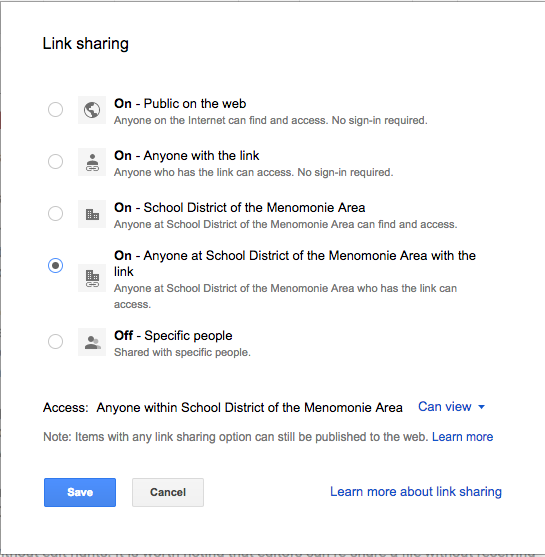
Selecting the default “get shareable link” option gives access to the file with everyone in our SDMA domain including students. You can also share files outside our domain by choosing “anyone with the link” or “public on the web.” While you may only publicize the link with your intended audience, your file is still searchable.
Link-based sharing is a quick and easy way to circulate documents in your Drive. Consequently, it also poses the greatest security risk to our data if misused or misunderstood because it often results in unintentional sharing of confidential or sensitive information internally.
Alternatively, the most secure way to disseminate file access is by invite. This selection requires you to type in the name or email address of those with whom you wish to share the file. This requires the recipients to be signed-in to their appropriate Google account to view or edit the shared document. To make this process more convenient, you may type in existing Google Groups. Typing in “High School Staff,” for example, will quickly share your document with everyone in that email group. For sensitive data, invite-based sharing either individually or by Group is highly encouraged in lieu of link-based sharing options. Additionally, by clicking “Advanced,” you receive the options to “Prevent editors from changing access and adding new people” and “Disable options to download, print, and copy for commenters and viewers.” These features further ensure that you retain control of your most sensitive data.
Tuesday, October 31, 2017
Adding & Managing Files in Multiple Folders Using Shift + Z

Google Drive makes it easy to collaborate and share files. While I love this aspect, I don't always appreciate being at the mercy of collaborators when it comes to organizing my files. As someone who shares many files and folders with others, one of my favorite features is the ability to place the same Google file in multiple locations.
To add existing files or folders to additional folders:
- Open your Drive and select the file(s) and folder(s) you want to add to another folder.
- Hold the Shift key and press Z and a window will pop up prompting you to select the folder you would like to store copies of your files and folders.
- Select an existing folder or use the folder with the + icon to create a new folder to house your files.
- Click the green Add here button and your files have been copied to multiple folders.
Thursday, July 27, 2017
Set an Expiration Date for Shared Access to Drive Files
Google allows Drive users to set an expiration date for shared access on documents. This is great for when you want to provide temporary commenting or viewing rights on documents. Expiration dates cannot be set for users with editing rights at this time.
Here's how it works:
- Go to your file's shared settings.
- Add your collaborators.
- Mouse over a collaborator whose access you'd like to expire after a set time.
- The timer icon will appear. Click it and set the expiration date for viewing or commenting rights.
- Save changes.
For more information, check out the Google Apps Updates Blog.
Subscribe to:
Posts (Atom)


