It's Digital Citizenship Week and I encourage you to sign up for the ISTE Digital Citizenship Coffee Break email course. Each day you receive a tip like the one on the left and free resources to use in the classroom.
ISTE is also hosting two Twitter chats on October 19 to discuss digital citizenship lessons and resources. Marialice Curran will use #ISTEChat at 7pm. ISTE's Digital Citizenship PLN will focus on the role of tech coaches and use #digcit at 8pm.
To promote digital citizenship in Menomonie, our HS Student Tech Team is designing a lesson on having a positive online presence to share with elementary and middle school students. Watch for an email from Student Tech Team later this week with the option to schedule a classroom visit between October 30 and November 21.
You can also follow #DigCitWeek on Twitter to see other Digital Citizenship Week news and events.
We are excited that we received a grant that allows us to offer students the opportunity to check out Kajeet wireless hotspots. The devices have a three -day loan period and students can check them out if they have a permission formsigned and submitted to the LMC. The purpose of the program is to ensure that all students are able to do homework and projects that require Internet use.
The Kajeet Hotspots do come with pre-configured filters that limit their use to educational resources. Streaming media (YouTube, Netflix, Hulu, Spotify, and Pandora) and social media (Facebook, Snapchat, Twitter, Instagram) are blocked by Kajeet and the filter cannot be customized by the district.
In addition, Kajeet has time-of-day controls that restrict access from 11:00pm - 6:00am so that students have appropriate time for sleep.
We are committed to providing access to technology for all students. If you have any questions about the program, please contact Katie Krueger or the Library Media Center.
Many teachers have asked about home access to SMART Notebook and/or the ability to open Notebook files on a Chromebook. SMART Notebook Express is a web-based, slimmed-down version of the desktop equivalent and does not require a download or licensing. Since it is web-based, it can be used with Chromebooks. It can also be downloaded on a Windows/Mac Desktop to access files offline. SMART Notebook Express allows anyone to open Notebook files and make minor changes. The Screen Shade, the pen, and eraser are supported and accessible, but more advanced features are unavailable. SMART Notebook Express is also great if you’ve got lesson resources in SMART Notebook that you want to share with your class, as it’s accessible for free from any computer with a web browser.
The quick start guide does point to the download button; however, you can skip this and click the blue button to open an existing smart notebook lesson or select the green button to create a new document on the web. The video link below walks through how to open an existing file saved in Google Drive.
Here is a video with directions for accessing existing Notebook files on your Chromebook:
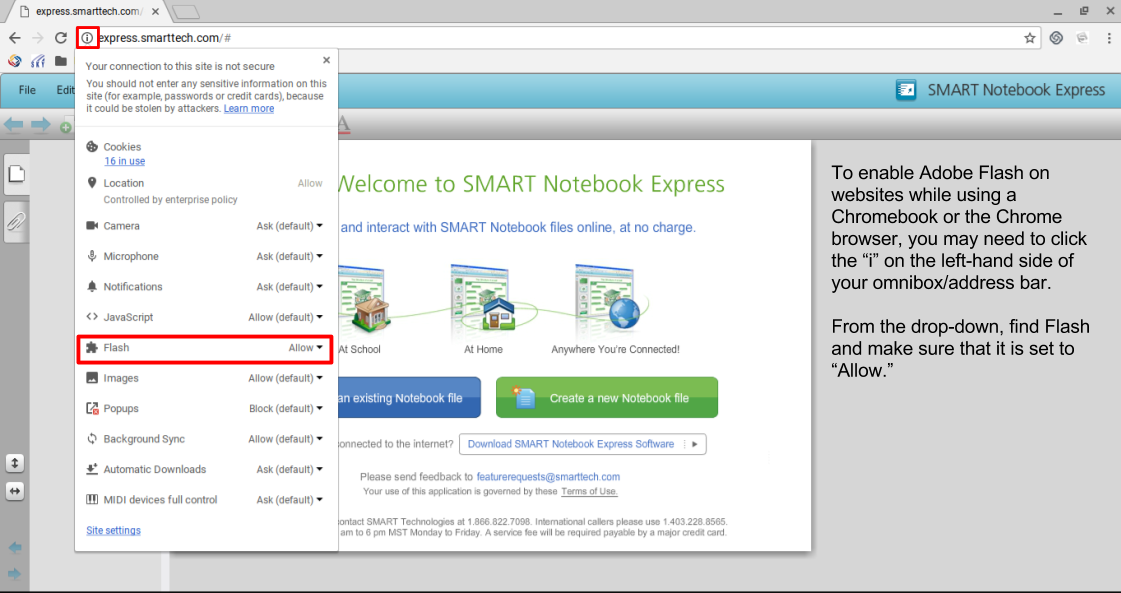
Depending on your browser settings and permissions, Adobe Flash may also have to be enabled in order for SMART Notebook Express to run in your browser.
Our school uses Securly, a cloud-based Internet filter, to help keep students safe on their school issued devices.Beginning this week parents and guardians of students in grades 6-12 will have the ability to receive and review their students' home Internet activity. All parents with emails on file with the district will receive a weekly email from Securly.com that will show a preview of their child’s online activity at home.
The Parent Portal contains three categories for guardians to view:
1. Activity (shows an audit trail of the student's online activity)
2. Flagged (shows posts made on Facebook, Twitter, and Google+ that have been flagged by Securly as potentially related to self-harm or bullying)
3. Settings (allows parents to control content on the device at home only)
In order to provide easy access to our most frequently visited district and grade level digital resources, the Technology Team has built an App Portal for staff and students. As part of this process, the team also enabled Single-Sign On (SS0) options when they were available.
The student portal pages automatically load as the home page for students when they are using Chrome.
Staff can access the portal page on the district website (Staff→Staff Tools→Staff App Portal).
Additionally, in order to comply with FERPA and COPPA to protect student data and privacy, we have created a list of digital resources that have been evaluated by our Technology Team. Websites and other digital resources that DO NOT require a student login can be used without review.
The following federal laws impact technology use and access for students.
FERPA - The Family Educational Rights and Privacy Act
FERPA requires that schools have written authorization from guardians to release information from students' educational records.
This means that only with specific exceptions, staff cannot share student information with apps and websites without guardian consent.
COPPA - The Children's Online Privacy Protection Act
COPPA places restrictions on software companies about the information they are able to collect about kids under 13.
This means that students under 13 are not able to create their own accounts. In some cases, teachers may be able to create accounts for students; however, FERPA responsibilities still apply.
CIPA mandates that districts take measures to filter internet access to protect students.
Here is an outline of our SDMA student data and privacy practices guide: Link
If there are resources you would like to use that are not currently approved or under review, please submit an evaluation request linked on the district app portal page. Chrome apps and extensions will not appear in the Webstore for students unless they have been evaluated and approved. A complete list of reviewed apps is also linked on the district app portal page.
Welcome Back SDMA Staff!
Our Technology Services Team is excited to start the 2017-2018 school year. Here are some of the technology updates that occurred while you were out:
New Internet Filtering Solution
This spring we put our a request for proposals for a new Internet filtering solution. Our contract with CIPA filter is expiring and we wanted a solution in place prior to the start of the school year. We piloted and opted to sign a contract Securly, a cloud-based filtering solution that will allow us to filter Chromebooks in and out of the district.
General Information about Securly:
It's always on, everywhere (on district devices or ANY device when you are logged into your Chrome browser with district credentials - details below)
Requires a district Google account
Supports multiple groups for filtering (staff settings vs. student settings)
Parent access to student after school online browsing
How It Works:
All of our district devices will be set up to route all Internet traffic through Securly. This is true regardless of whether users are connecting to the Internet from school, home, or anywhere else.
When users first try to go anywhere they will be asked to log in to their district google account, using the @msd.k12.wi.us address. This identifies the user to the Securly system, so that we know who it is and can place them in the appropriate filtering group. If you are not logged into Chrome on district devices, you may receive prompts to login or be blocked from navigating the web until you sign-in. (See directions for signing into the Chrome browser below).
Securly is activated whenever one of these two conditions occur:
Anytime a district-issued Chromebook is used, the user is signed into their account when they go onto the Chromebook and Securly is activated.
On all other district or home devices (desktop or mobile), Securly is activated only if a user signs into the Chrome browser using their school account. Securly does not activate on a personal device if the user just opens their email (see below).
What’s the difference between signing into email and signing into Chrome?
This is an important distinction that should be clearly understood:
You can open a browser window and sign into your school email, and you will not be signed into Chrome.
However, if you sign into the Chrome browser itself with your district account, all extensions that are assigned by the District will become active in the browser, including Securly.
The image below shows the Chrome menu and the sign-in status. In this particular browser, I am signed in, so Securly is monitoring my activity.
This image below again shows the Chrome menu and the sign-in status. In this particular browser, no one is signed in, so Securly will not monitor activity outside of the district.
If you receive a message that an educational site is now blocked, please notify the the technology department by creating a help desk ticket and include the url to the blocked site.
We are also excited about the built-in auditing for self-harm and cyberbullying that Securly offers, as well as, the parent portal feature. Parents will soon have access to see how their kids use school devices at home and also receive notifications for self-harm or cyberbullying.
Computer Lab Removal, Device Retirement, and Re-imaging
Computer labs were removed district-wide as we move to mobile devices. Some desktops were re-imaged and re-purposed as classroom stations for accessing SMART Notebook for teachers who selected to move from MacBooks to Chromebooks this year. The remaining curricular labs were also reimaged for the start of this school year. Some of our Chromebook models were just months from their end of support from Google and would not be able to update for state testing this year. We opted to pull these devices out of service this summer and purchase replacements.
SMART Notebook Express is a web-based version of SMART Notebook that can be accessed on Chromebooks and/or personal devices where licensing is unavailable. Check out directions here. This is a great option for allowing students access to lessons and for teachers to create and/or open lessons from home. Teachers with desktop stations needing admin access to download individual software unavailable through Self-Service, can place a tech ticket after logging in and we can grant you additional rights.
Staff Devices Almost all staff who are keeping their MacBooks this year brought them in for hard drive replacement and reimaging either prior to the end of last school year or over the summer. We appreciate your annual cooperation in this important maintenance and encourage anyone who may still need to have their computer reimaged to contact us to schedule. The technology department does have devices available for checkout while yours is being serviced.
Para-educators were asked to turn in their devices over the summer and we were able to replace their Chromebooks with the same new Chromebooks issued to our teachers.
Grades K-5 Access
We are happy to share that even after the removal of the computer labs and MacBook carts, elementary students will have the same or better device access ratios this school year. The retired devices were replaced with carts of Chromebooks. Most Chromebooks were moved from the MS and HS levels and additional Chromebooks were purchased to account for the Chromebooks that Google is no longer supporting with updates and those damaged last school year. The ratio of students to devices will be approximately 2 to 1.
Grades 6-12 M-Powered Learning 1:1 Initiative We are excited to begin the school year with 1:1 Chromebook access for our students in grades 6-12. Many of our students came in August to pickup their devices and take care of paperwork prior to the first day of school.
Our Technology and Curriculum Teams are excited to support teachers as we shift instruction to integrate technology in meaningful ways in order to increase collaboration, communication, critical thinking, and creativity.
For more information on the M-Powered Learning Initiative, checkout our district webpage: http://tinyurl.com/sdmampower.
Students who have not yet received their Chromebooks will have the opportunity on the first day of school. If parents have not yet signed off on the insurance acceptance or waiver, the device will remain at school until forms are received. New HP Printers
This spring we accepted bids for a new managed print services and the purchase of new printers. As part of this process, we evaluated our current printing analytics and reduced our fleet. This upgrade and reduction will allow us to see a return on our investment in less than two years.
All the new printers enable printing from Chromebooks as well as laptops and desktops.
Here are directions for printing from Chrome:
Here are directions for adding printers on Mac computers:
Locate Self Service in your Applications Folder
Under categories, select the printers for your grade level/building.
Install the HP Print Driver.
Click Install next to all of the printer(s) and copier(s) you want to access.
Repeat until all printers you want are installed
There are no changes for adding/installing printers on Windows computers.
Creation of Student and Staff App Portal Pages
In order to provide easy access to our most frequently visited digital resources, the Technology Team has built an App Portal for staff and students. As part of this process, the team also enable Single-Sign On (SS0) options when they were available.
Additionally, in order to comply with FERPA and COPPA to protect student data and privacy, we have created a list of digital resources that have been evaluated by our Technology Team. If there are resources you would like to use that are not currently approved or under review, please submit an evaluation request. Chrome apps and extensions will not appear in the Webstore for students unless they have been evaluated and approved.
EduClimber
EduClimber now also includes
HS - Credits earned
MS - Gradebook
K-5 - Gradebook (reports grades for end of term)
Brightbytes Clarity Survey
The Brightbytes Clarity survey tool being implemented this year will allow us to monitor classroom practices, access (including home internet), skills and competencies, and environment in terms of technology. District staff, students in grades 3-12, and parents will be asked to take this 15-minute survey annually (twice this year in order for us to have a baseline). The results will help us identify areas of strength and growth. The database provides a comprehensive dashboard that allows for grade level, building, student to teacher, and statewide comparisons of data. Additionally, there are suggested actions and research that help guide action steps for areas of growth including "quick wins" and long-range planning.
Changes to the Technology Services Team
This summer we had some changes to our Technology Services Team. Ashley Close and Josh Huhmann left to accept new positions and we wish them well. We welcomed Spencer Wilson and Josh Squires, both recent graduates from CVTC, to our team.
In our staffing transition, we decided to fill the part-time role of the the district-wide Innovation Specialists with current teaching staff. This option allows us to recognize the talent we have in the district and meet the critical needs of professional development as we increase device access and learning opportunities for our students. Empowering building leaders to serve as coaches, trainers, and student advisors allows us all to capitalize on existing rapport and relationships for successful outcomes.
Here are the staff members available to help you in each building:
Building Technology Integration Coaches
High School: Andrea Smith, Michele Huppert, Kayla Oliver and 1 more position available.
Middle School: Amanda Harrison, Jennie Cimino, and one to be confirmed.
Downsville: Jessica Graham
Knapp: To be confirmed.
Oaklawn: Zachary Rubenzer and 1 more position available.
River Heights: Kyle Gregerson and 1 more position available.
Wakanda: Heidi Anderson and one to be confirmed.
Career Cruising Trainers
High School: Michele Huppert
Middle School: 1 position available.
HS Student Tech Team Advisor and MS Student Tech Club Advisor: Terry Staupe
If you are interested in any of the above openings, please email Sam Hoyt and your building administrator.
Need to submit a Tech Ticket?
The best way to contact the technology department for support is by creating a tech ticket through your email. This allows our entire team to view and track the status of your request. The address is tickets@msd.k12.wi.us. This is the only option available if you are submitting a ticket when you are outside of the district. Because we have new tech team members, it is very helpful to include your building, room number, and phone extension in the ticket/email along with a description of how we can help. In the event that you need immediate assistance, please call Morgan at extension 11142 and she will be able to direct you to any team members currently in the office.
Here's to a great school year!
The Technology Services Team
Katie Krueger, Josh Squires, Spencer Wilson, Danny Lehman, and Morgan Seguin
Google Alerts are a great way to easily track content and receive updates directly in your inbox. To get started, make sure you are logged into your Google account and navigate to google.com/alerts. By default, Google will recommend that you set an alert for your profile name. Notice that your name is in quotes, so that only results that have your first name and last name together are included in the results.
Use the search box to setup alerts for additional topics you want to follow. Use best search term practices to populate the best results. Here are some examples and suggestions:
"[your first name] [your last name]"
"School District of the Menomonie Area"
"Menomonie High School"
location: Menomonie, WI
"[your topic] location: Menomonie, WI
"News" location: Menomonie, WI
New [technology] this year or New [technology] 2017
Click show options to change:
Choose often you receive notifications
Select the types/formats of content to search
Enter your language
Choose region you want to receive information from
Opt to see all results or top results
Select the account you want to receive alerts
Once you have adjusted your settings, click create alert. You will now receive email notifications whenever Google finds search results for your topics.
To adjust or delete your alerts, simply navigate back to google.com/alerts and click the pencil to edit or the trash can to delete alerts for any topic. To stop alerts by clicking unsubscribe at the bottom or an alert email.

 It's Digital Citizenship Week and I encourage you to sign up for the ISTE Digital Citizenship Coffee Break email course. Each day you receive a tip like the one on the left and free resources to use in the classroom.